# Day View
***
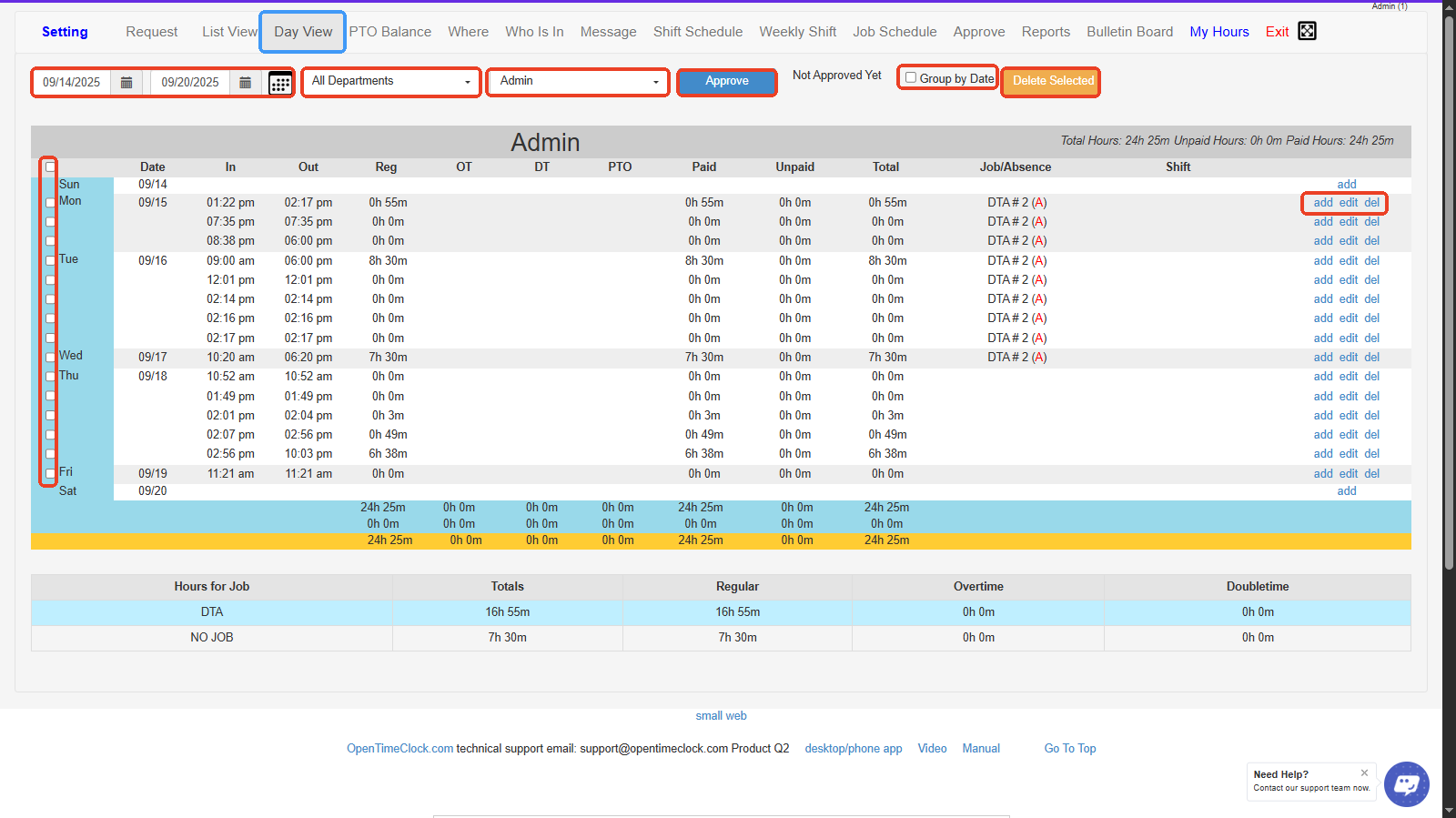
1. **Date Range Selector-** Choose the start and end dates to display time entries within a selected period.
2. **Department Filter-** Filter employees by department to view only relevant staff records.
3. **Employee Selector-** Select a specific employee to view their daily time records.
4. **Approve Button-** Approve selected time entries directly from the Day View screen.
5. **Group by Date Checkbox-** Toggle to group records by date for easier review.
6. **Delete Selected Button-** Delete multiple selected time entries at once.
7. **Selection Checkboxes-** Check boxes next to each entry to approve or delete multiple records at once.
8. **Add / Edit / Delete Links-** Manage individual time entries — add new, edit existing, or delete unwanted entries.
9. **Daily Totals Row-** Shows total hours (paid, unpaid, overtime, etc.) calculated for each day at the bottom of the table.
10. **Hours for Job Summary Table-** Breakdown of total hours worked per job and category (regular, overtime, double time).
***