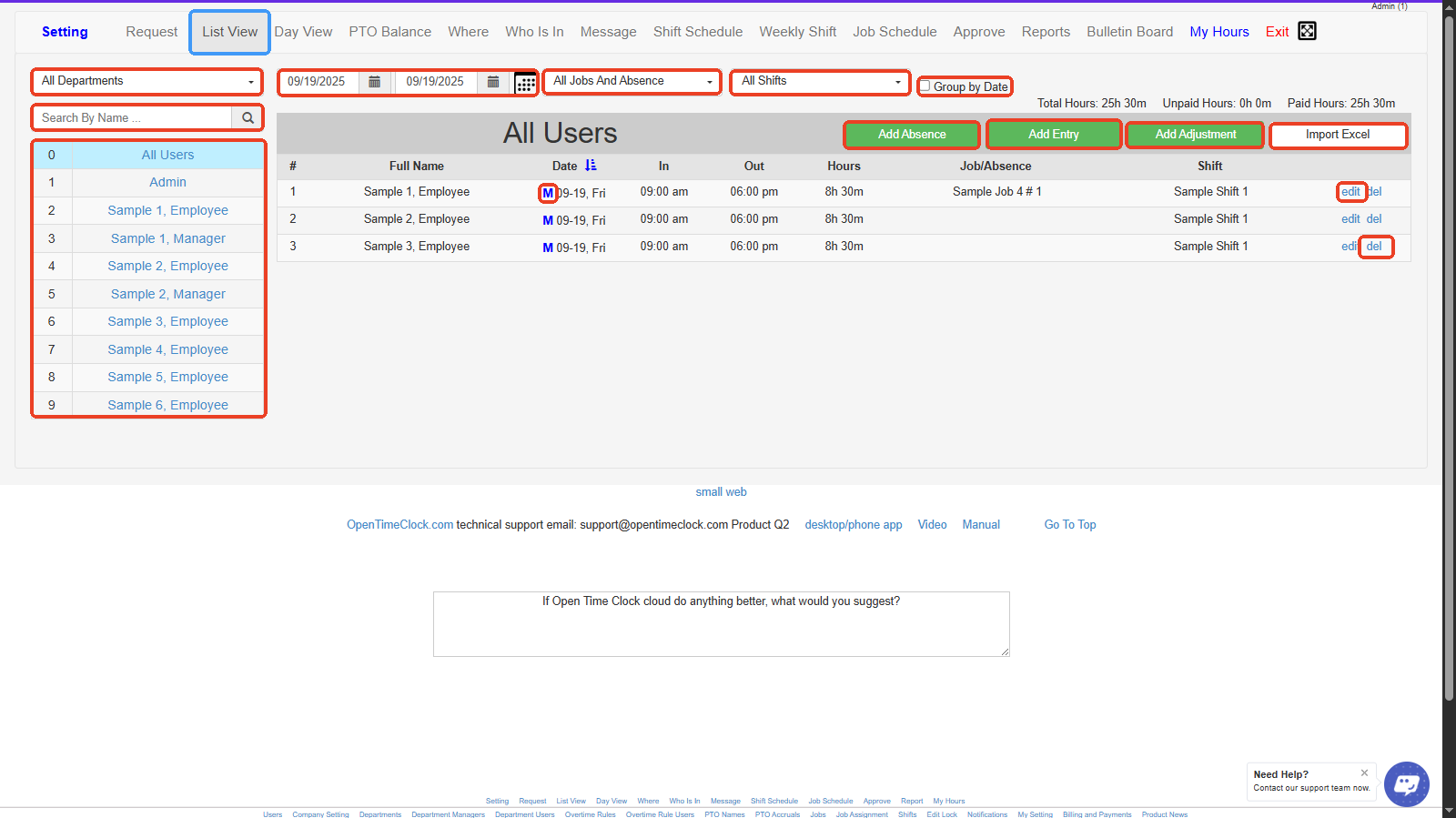
# List View
It’s useful for managers and admins to review attendance records, verify time entries, and make quick edits or approvals when needed.
***
1. **All Departments-** Dropdown to filter employees by department.
2. **Date Range Selector-** Set start and end dates to filter records within a specific time period.
3. **Jobs and Absence Filter-** Filter the list by job assignments or absence records.
4. **Shift Filter-** Select specific shifts to view only employees assigned to those shifts.
5. **Group by Date-** Toggle to group records by date instead of by employee.
6. **User List-** Displays all users in the system. You can select a user to view their detailed records.
7. **Add Absence-** Button to record or add employee absences.
8. **Add Entry-** Button to add a time entry for an employee manually.
9. **Add Adjustment-** Button to adjust hours or time entries for employees.
10. **Import Excel-** Upload time entries or absence data in bulk using an Excel file.
11. **Edit / Delete (Row Actions)-** Options to edit or delete a specific time entry or record for an employee.