# PTO Balance

***

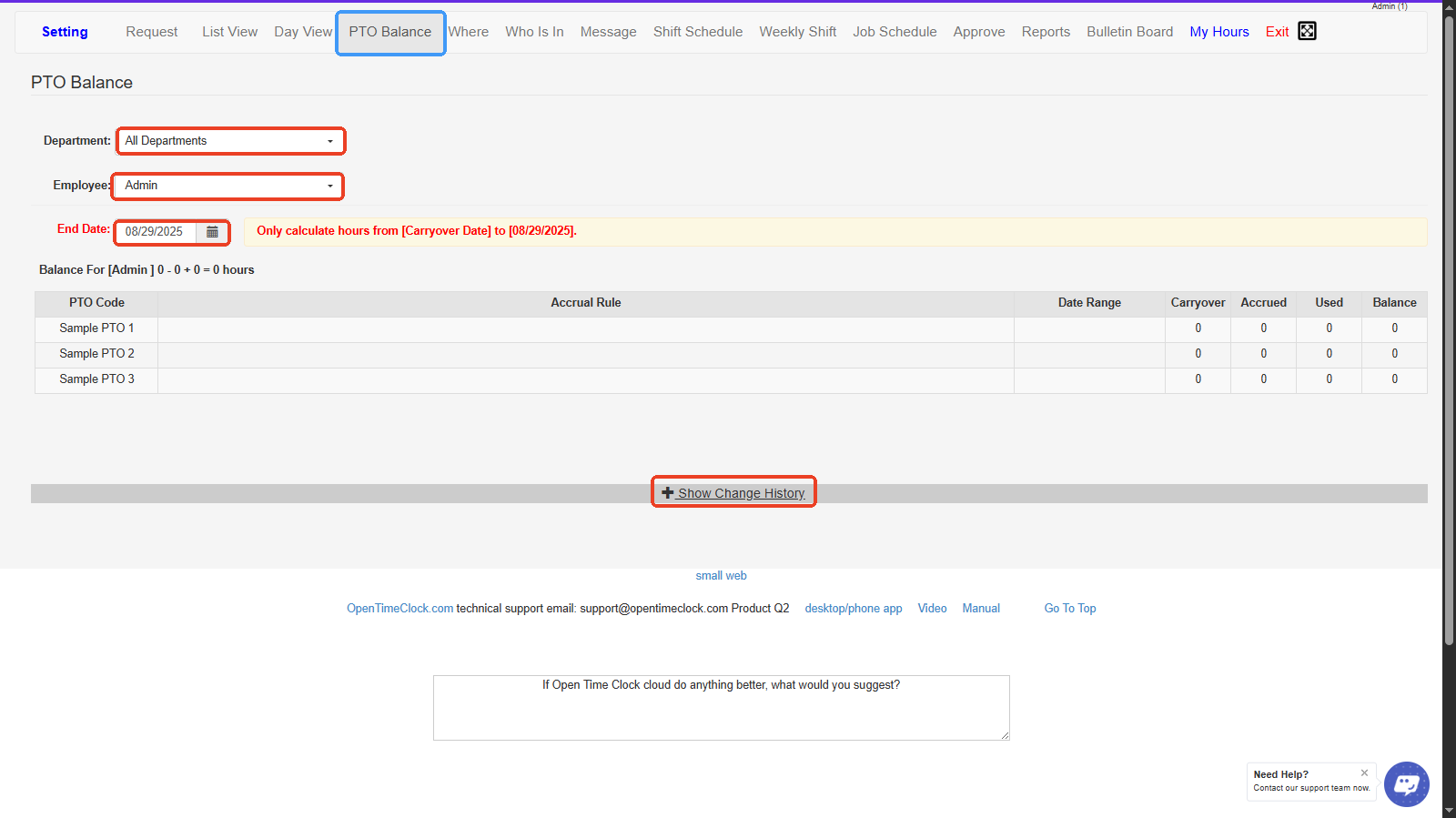
1. **Department Filter-** Dropdown to select and filter PTO balances by department.
2. **Employee Selector-** Dropdown to choose a specific employee to view their PTO balances.
3. **End Date Selector-** Set the cutoff date to calculate PTO hours up to a specific point in time.
4. **PTO Balance Table-** Displays each PTO code with its accrual rule, date range, carryover, accrued, used, and remaining balances.
5. **Show Change History-** Expand to view the detailed history of PTO accruals, usage, and adjustments for the selected employee.

***
<figure><img src="https://2341424831-files.gitbook.io/~/files/v0/b/gitbook-x-prod.appspot.com/o/spaces%2FMZp90d9Kar54BXRBM0kI%2Fuploads%2FjS6QmlfrdOY3E8cT4hrc%2Fimage.png?alt=media&#x26;token=c253e7be-c09c-4618-86f7-a7dda535aa2a" alt=""><figcaption></figcaption></figure>

<p align="center"><a href="https://www.opentimeclock.com/signup.html" class="button primary" data-icon="user-plus">Sign Up for Free</a>                            <a href="https://www.opentimeclock.com/app.html" class="button secondary" data-icon="right-to-bracket">Log In</a>                            <a href="https://www.opentimeclock.com/" class="button secondary" data-icon="house-window">Home</a></p>

> <p align="center"><mark style="color:$info;">Feel free to contact us at our toll-free number: +1-833-702-2927 or email us at support@opentimeclock.com.</mark></p>
