# Who is in
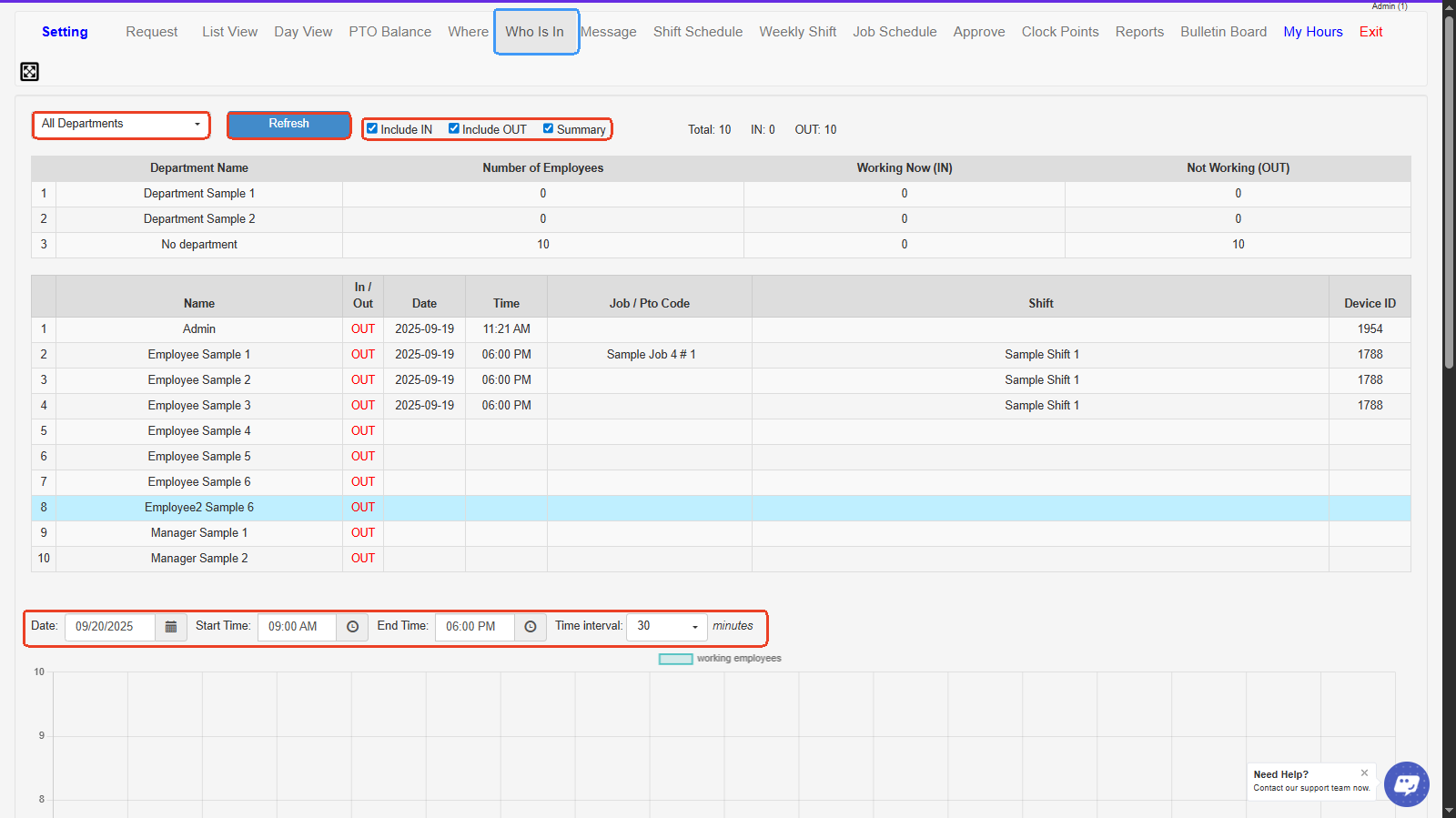
It helps managers quickly see attendance status, monitor active shifts, and ensure proper staffing at any given time.
***
1. **Department Filter-** Dropdown to view employees from all departments or a specific department only.
2. **Refresh Button-** Updates the display to show the most current “Who’s In” data.
3. **Include IN / Include OUT / Summary Checkboxes**
* **Include IN**: Show employees currently clocked in.
* **Include OUT**: Show employees currently clocked out.
* **Summary**: Show a department-level summary of total IN and OUT employees.
4. **Employee Status Table-** Lists employees, their IN/OUT status, clock-in/out time, job/PTO code, assigned shift, and device used.
5. **Date Selector-** Choose the date to display attendance information.
6. **Start Time / End Time-** Set the time range for the chart below to analyze employees working at specific times of the day.
7. **Time Interval Dropdown-** Select the interval (in minutes) to break down the chart view of working employees over time.
8. **Working Employees Chart- A** Visual graph showing the number of employees working within the selected date and time range.
***